

-
About Common Goods 4
-
Eligibility & Getting Started 6
-
Fees & Financials 7
-
How It Works - Operations 6
-
Shipping & Customer Service 6
-
Visibility & Growth 3
-
Policies & Legal 5
-
Support 5
-
Technical Setup & Policies : Shopify Collective 0
-
Shopify Collective - Getting Started 21
-
Shopify Collective - Community Guidelines 2
-
Shopify Collective - Finding & Connecting with Retailers 7
-
Shopify Collective - Price Lists & Products 12
-
Shopify Collective - Shipping 6
-
Shopify Collective - Orders, Returns & Fulfillment 5
-
Shopify Collective - Payments & Taxes 11
-
Shopify Collective - Managing Your Account 3
-
-
Technical Setup & Policies : All Other Platforms 14
-
CG App - eCommerce Integrations 8
-
CSV upload


Bulk upload via CSV
Vendors with large inventory won't have time to add their listings individually. Thanks to the CSV upload feature, you can add thousands of listings within a few minutes.
This feature is found on Garnet > Products > Add product > Bulk upload.
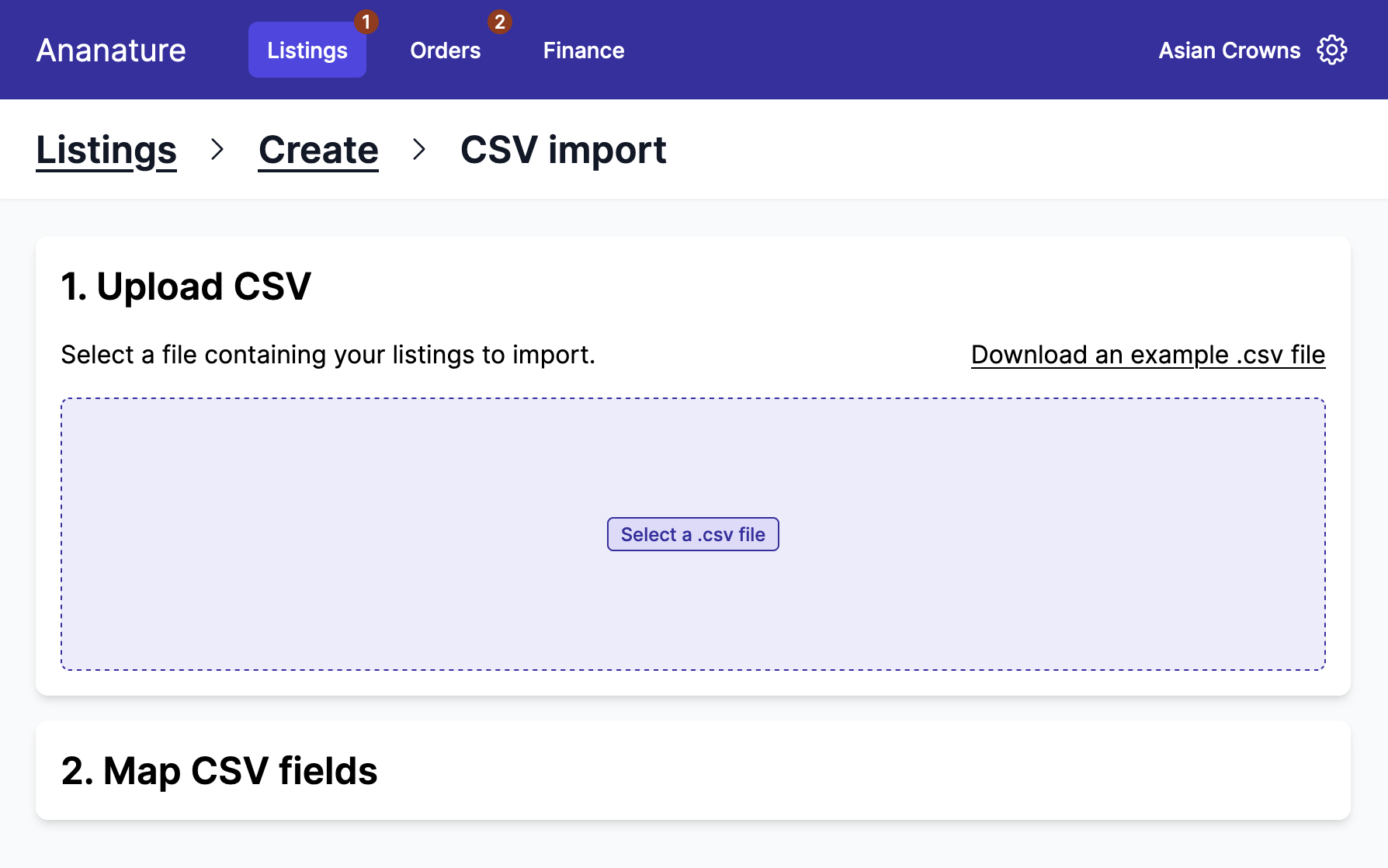
1. Upload a CSV
Any CSV will do. To ensure you have all the fields, you can download an example of CSV file directly from the interface. The sample contains all the fields you can use and showcase a complex listing with variants.
With CSV upload, products are uniquely defined by their SKU. Uploading the same CSV twice will update the products.
You can always download the list of product from Common GOods, update it, and upload it back to Common Goods to easily update products in bulk.
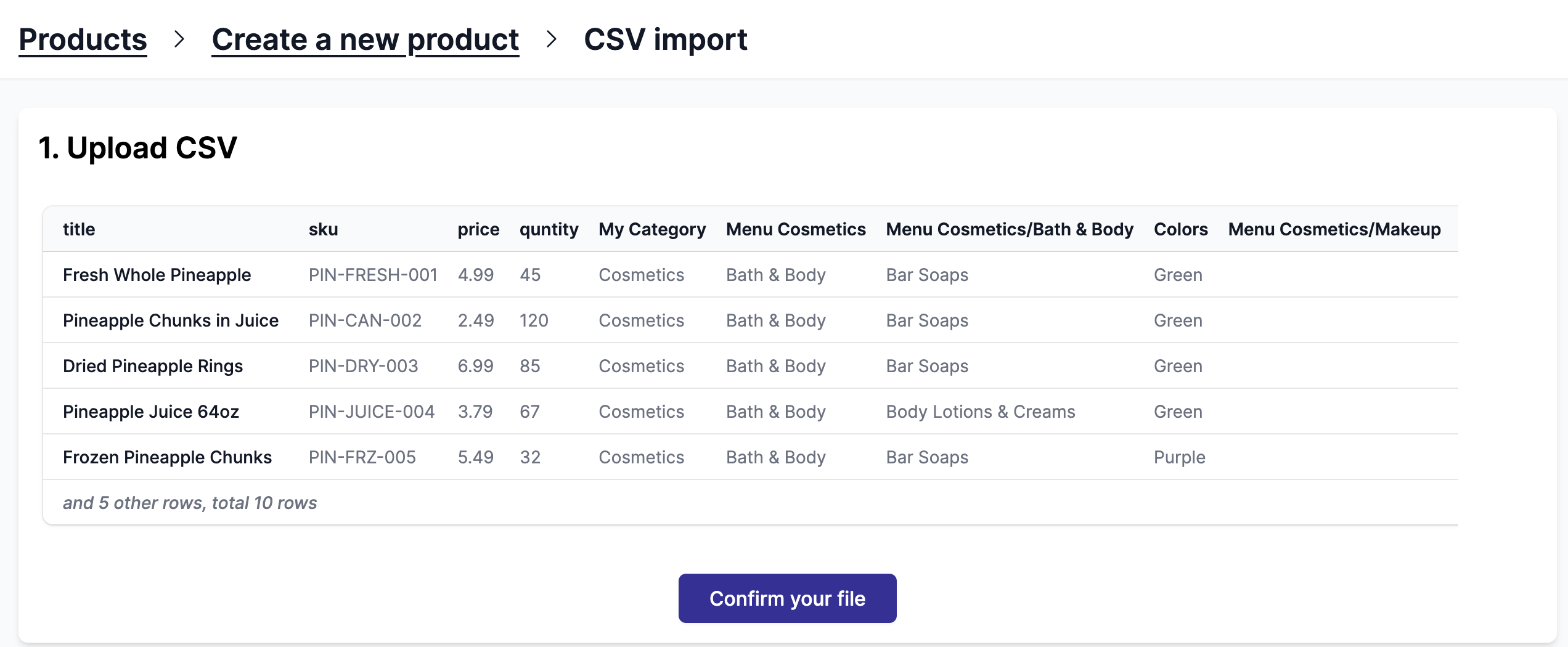
Once you have your file ready, you can upload it to Common Goods. You can then review your data and make sure it is the correct CSV. The first few rows are displayed to help you correct any obvious mistake.
When you are happy with your file, hit the confirm button.
2. Map fields
Your file's headers do not necessarily align with Common Goods'. Here you can map your file's headers with the one available on Common Goods. Moreover, for every field you map, you will have a live validation that will explicitly tell if some values are wrong.
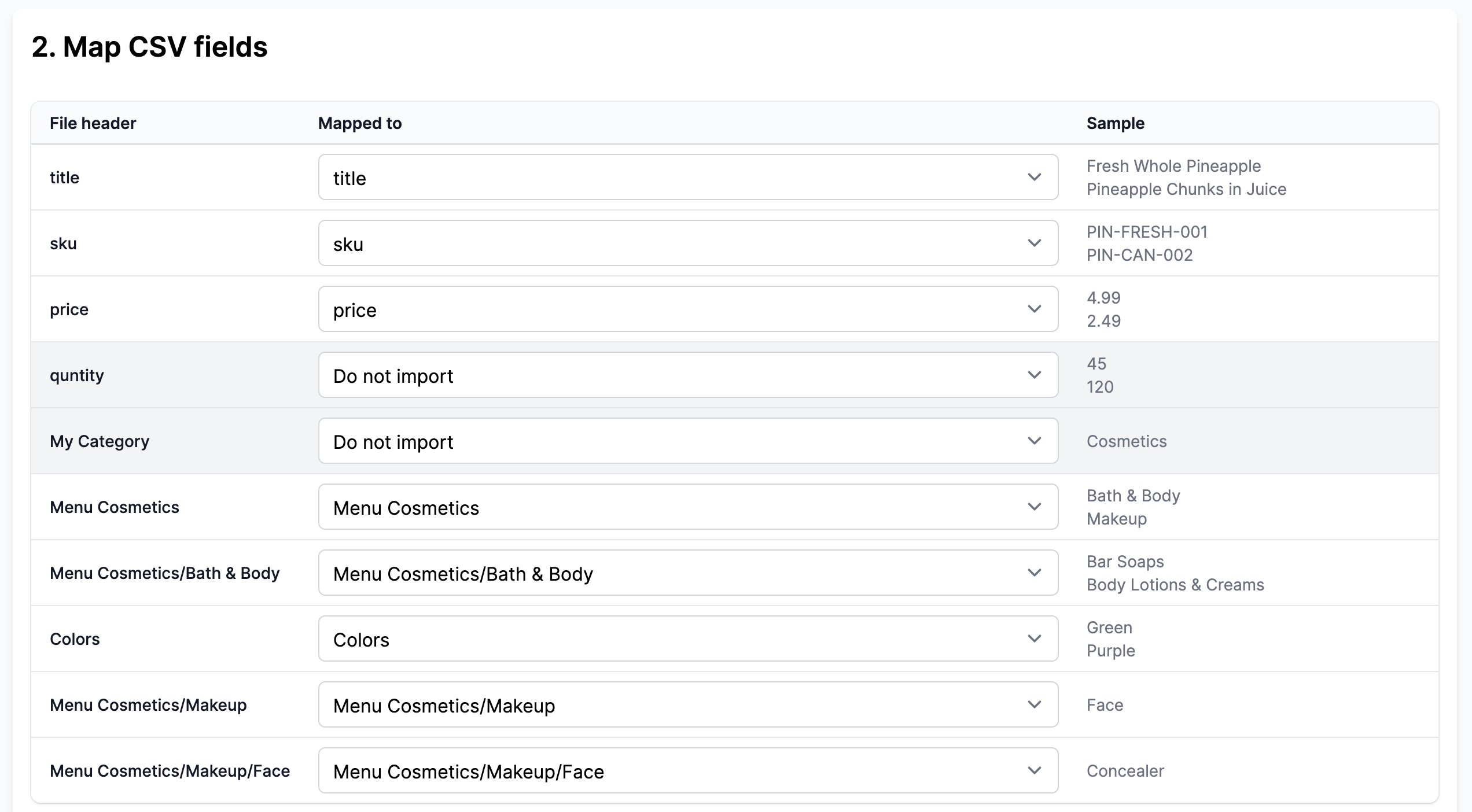
When the file is uploaded, Common Goods will try to match fields by itself. When it is not possible, it set the value to Do not import. You can open the dropdown to match it to the corresponding value. Here quantity should be matched to stock.
3. Validation
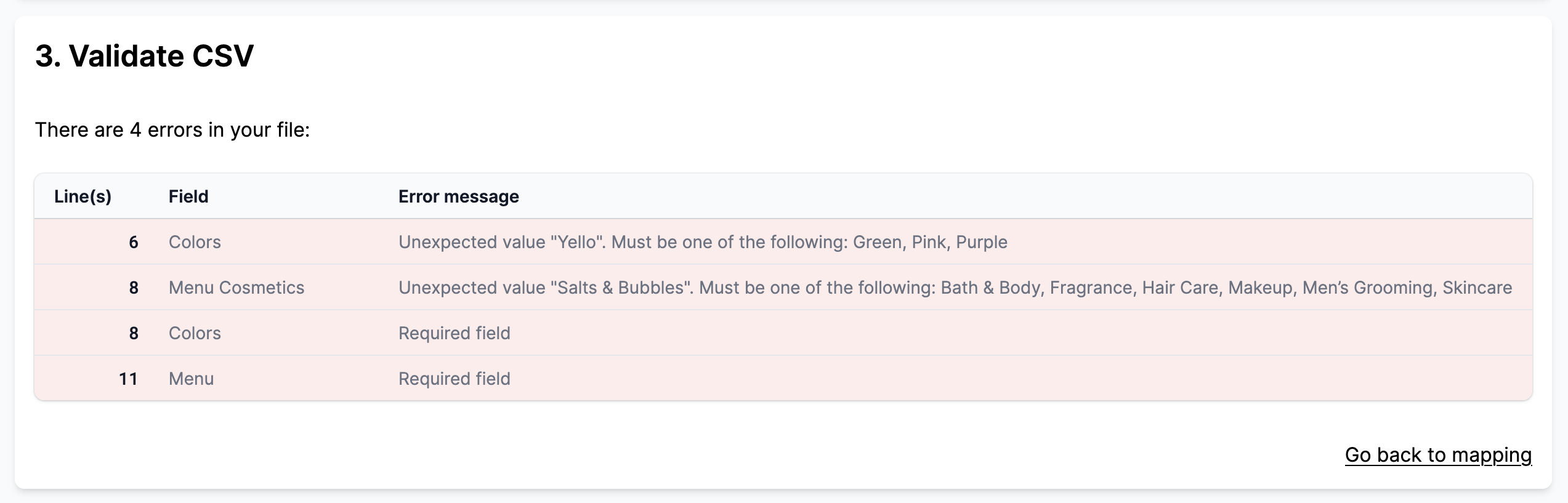
Once the CSV is mapped, your dashboard will show the validation results in a table. The errors are made to be specific so you can pinpoint exactly which line needs to be fixed.
If the marketplace is using product fields or mandatory fields, the validation will also validate the required conditions.
Behavior details
- Each CSV row must have an SKU.
- If the vendor already have an SKU, then the SKU will be updated, otherwise it will be created.
- If 2 rows have the same SKU, only the first row will be considered.
- If a variation of a product is missing, the variation will be removed.
Vendors and SKU
Two different vendors are allowed to have products with the same SKU.
Upload several variants
You can use up to 3 variants in your CSV. To do so you need to map the fields option X name and option X value to the name and the option of the variant. You can find an example below.
title                ,sku        ,option 1 name,option 1 value,price,stock
Fresh Whole Pineapple,PIN-FRESH-S,Size         ,Small         ,4.99 ,7
Fresh Whole Pineapple,PIN-FRESH-M,Size         ,Medium        ,5.99 ,12
Fresh Whole Pineapple,PIN-FRESH-L,Size         ,Large         ,6.99 ,4


esc