

Google Sheets Integration


The Google Sheets integration lets vendors manage their products and tracking via a shared Google Spreadsheet. Common Goods syncs the sheet every hour to import products and push orders.
Integration scope
- ✅ Easy install with Common Goods Seller email
- ✅ Product synchronisation
- ✅ Order synchronisation
- ✅ Tracking synchronisation
- ❌ Cancellation and refunds
Getting started
- Make a copy of the sample Google Sheet template
- Click
Sharein Google Sheets - Invite
google-sheet-integration@garnet-marketplace.iam.gserviceaccount.comwith Editor access - In your Common Goods dashboard, go to
> Settings > Integrationsand select Google Sheets - Paste the Google Sheet URL and save
Common Goods will validate access to the sheet and start syncing products every hour.
Sheet structure
Here is a sample Google Sheet you can use as a template.
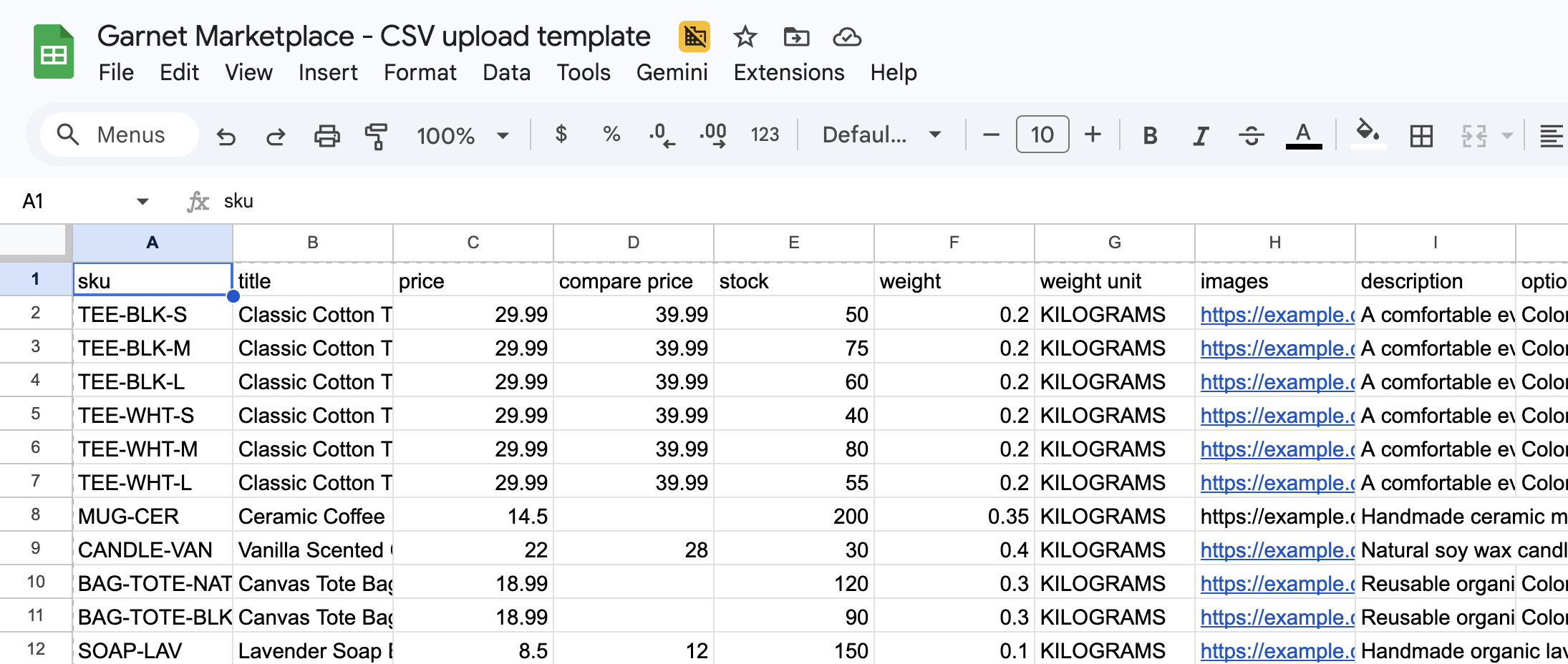
The Google Spreadsheet must contain 3 tabs:
- Products — the vendor lists their products here. Common Goods reads this tab to import and update products.
- Orders — Common Goods pushes orders to this tab. One line per line item.
- Tracking — the vendor fills in tracking information here. Common Goods reads this tab to update fulfillment tracking.
Products tab
TIP
The Products tab uses the same format as the CSV bulk upload. Refer to the CSV documentation for more details.
The first row must contain the column headers listed below. Each subsequent row represents a product variant.
| Column | Required | Description |
|---|---|---|
sku |
✅ | Unique identifier for the variant |
title |
✅ | Product name |
price |
✅ | Variant price |
compare price |
Original price before discount | |
stock |
Inventory quantity (integer). Leave empty or write Untracked for untracked inventory |
|
weight (kg) |
Product weight in kilograms | |
images |
Image URLs, comma or space separated | |
description |
Product description (HTML) | |
option 1 name |
Name of the first variant option (e.g. Size) |
|
option 1 value |
Value of the first variant option (e.g. M) |
|
option 2 name |
Name of the second variant option (requires option 1) | |
option 2 value |
Value of the second variant option | |
option 3 name |
Name of the third variant option (requires option 2) | |
option 3 value |
Value of the third variant option |
Products are matched by SKU. If a SKU already exists, the product is updated; otherwise a new product is created.
Variants of the same product share the same title and are differentiated by their option values. Up to 3 option levels are supported.
To use metafields, export the CSV template from > Products > CSV Upload. The CSV headers will include your store's metafield columns. Add these same columns to your Google Sheet.
Orders tab
Common Goods pushes orders to this tab automatically. Each line item in an order produces a separate row. Do not edit this tab — it is managed by Common Goods.
To locate marketplace orders, use the order name column which contains the original marketplace order number (e.g. #1042).
| Column | Description |
|---|---|
order id |
Unique order identifier |
order name |
Order display name (e.g. #1042) |
created at |
Order creation date |
updated at |
Last update date |
email |
Customer email |
fulfillment status |
Current fulfillment status |
line item name |
Name of the product variant |
line item sku |
SKU of the product variant |
line item quantity |
Quantity ordered |
line item price |
Unit price |
shipping method |
Shipping method selected by the customer |
shipping name |
Shipping recipient full name |
shipping address1 |
Shipping address line 1 |
shipping address2 |
Shipping address line 2 |
shipping city |
City |
shipping zip |
Postal code |
shipping province |
State or province |
shipping country |
Country |
shipping phone |
Phone number |
Tracking tab
Common Goods writes one row per order in this tab. The vendor must update the existing lines with the tracking information. Common Goods then reads the updated rows to sync fulfillment tracking on the marketplace. Tracking is only created — once submitted, it cannot be updated.
| Column | Required | Description |
|---|---|---|
order id |
✅ | The order identifier (must match an order from the Orders tab) |
order name |
✅ | The order display name (e.g. #1042) |
tracking number |
✅ | Shipment tracking number |
tracking company |
✅ | Carrier name (e.g. DHL, FedEx, La Poste) |
tracking url |
Full tracking URL (optional) |


