

-
About Common Goods 4
-
Eligibility & Getting Started 6
-
Fees & Financials 7
-
How It Works - Operations 6
-
Shipping & Customer Service 6
-
Visibility & Growth 3
-
Policies & Legal 5
-
Support 5
-
Technical Setup & Policies : Shopify Collective 0
-
Shopify Collective - Getting Started 21
-
Shopify Collective - Community Guidelines 2
-
Shopify Collective - Finding & Connecting with Retailers 7
-
Shopify Collective - Price Lists & Products 12
-
Shopify Collective - Shipping 6
-
Shopify Collective - Orders, Returns & Fulfillment 5
-
Shopify Collective - Payments & Taxes 11
-
Shopify Collective - Managing Your Account 3
-
-
Technical Setup & Policies : All Other Platforms 14
-
CG App - eCommerce Integrations 8
-
Bulk image upload


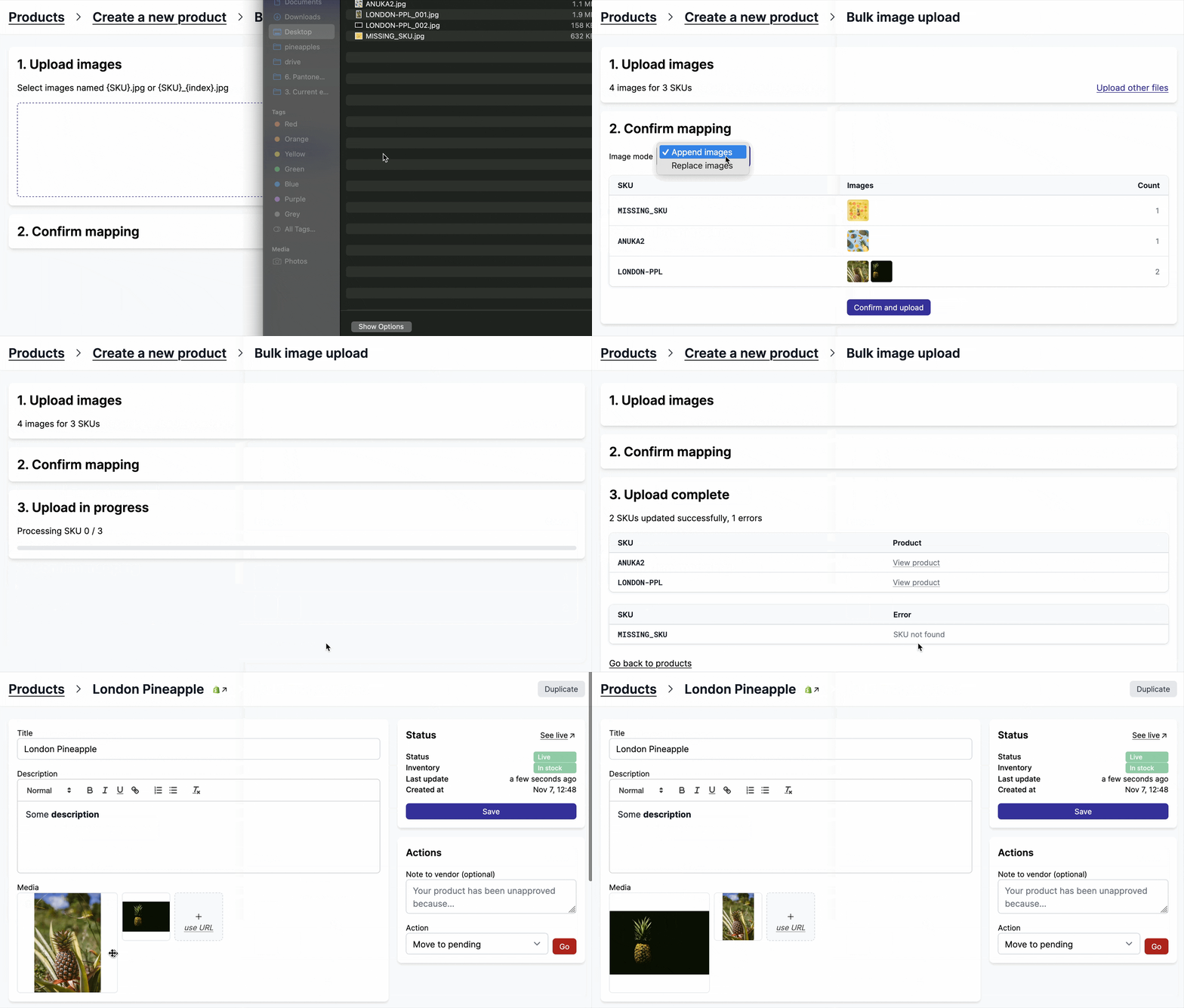
Upload images to many products at once by naming your image files after their SKU. This is useful when you have a large number of product images to add or replace.
This feature is found on > Products > Add product > Bulk image upload.
How it works
- Name your image files using the product SKU:
SKU.jpgorSKU_1.jpg,SKU_2.jpgfor multiple images per product. - Select all images at once in the upload dialog.
- Ci=ommon Goods groups the images by SKU and shows a preview of the mapping.
- Choose whether to append images to existing ones or replace all existing images.
- Confirm and upload.
File naming convention
| File name | SKU | Image index |
|---|---|---|
ABC-001.jpg |
ABC-001 |
1st image |
ABC-001_1.jpg |
ABC-001 |
1st image |
ABC-001_2.jpg |
ABC-001 |
2nd image |
XYZ-200.png |
XYZ-200 |
1st image |
Supported formats: .jpg, .jpeg, .png, .webp, .gif, .heic.
Append vs Replace
- Append images: New images are added alongside existing product images.
- Replace images: All existing images are removed before adding the new ones.
Demo


esc